Samsung Remote App lets you control Samsung TV and BD products easily when you have them connected to the same wireless router.
Main Features:
- Bluetooth PowerOn
You can use your mobile device to turn on your TV using Bluetooth (available for certain TV and mobile devices only).
- Remote
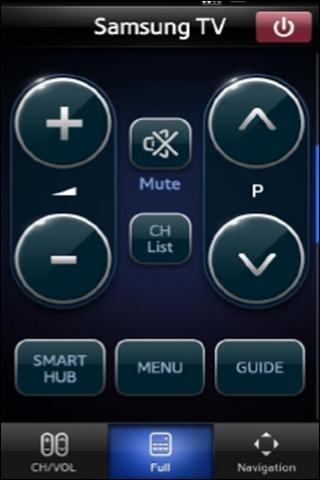
Your mobile device can work as remote for your Samsung TV or BD products.
Definition of Layout;
Full remote screen is provided by default.
Three tabs are provided at the bottom of the screen to help you control connected devices with ease.
Onscreen keyboard shows up automatically when you need to enter text.
- Game Controller
With this feature, your mobile device can control games on TV. Full and Simple modes are available. Turn on Gyro function on your mobile device, and control games by tilting your mobile device.
- Settings
You can fine-tune and adjust gesture sensitivity on your mobile devices in order to control TVs and BD players.
How to set up
1. Connect wireless/wired router to TV LAN port, or connect Samsung Wireless LAN adapter to TV USB port.
How to set up on TVs
[Menu]→[Network]→ configure settings in [Network Settings]
2. Connect your phone to wireless/wired router.
How to set up on Phones
[Settings]→ configure settings in [Wireless and Network]
For the TV models list below, check if Wireless Remote Control or Network Remote Control is enabled in your TV’s System or Setup menu if the connection is not made.
TV released in 2010 with Internet@TV feature
Models greater or equal to LCD 650, LED 6500, PDP 6500
TV released in 2011 with AllShare feature
Models greater or equal to LCD 550, LED 5500, PDP 5500
[Supported Models]
TV released in 2010 with Internet@TV feature
Models greater or equal to LCD 650, LED 6500, PDP 6500
TV released in 2011 with AllShare feature
Models greater or equal to LCD 550, LED 5500, PDP 5500
BD released in 2011 with Smart Hub feature
1.Models greater or equal to BD-Player D5300
2.Models greater or equal to BD-HTS D5000
3.BD-AVR D7000
4.BD-HDD Combo D6900/8200/8500/8900
Note: Samsung App’s demonstration is available without connecting your mobile device to Samsung TV. Press Demo Play to see it.
This app is optimized for WVGA(800*480) resolution screen.
The app may not display properly in HVGA(320*480) or QVGA(240*320) resolution.
More Info:
Download Instructions:
Samsung Remote v2.2.5
Read More..
Main Features:
- Bluetooth PowerOn
You can use your mobile device to turn on your TV using Bluetooth (available for certain TV and mobile devices only).
- Remote
Your mobile device can work as remote for your Samsung TV or BD products.
Definition of Layout;
Full remote screen is provided by default.
Three tabs are provided at the bottom of the screen to help you control connected devices with ease.
Onscreen keyboard shows up automatically when you need to enter text.
- Game Controller
With this feature, your mobile device can control games on TV. Full and Simple modes are available. Turn on Gyro function on your mobile device, and control games by tilting your mobile device.
- Settings
You can fine-tune and adjust gesture sensitivity on your mobile devices in order to control TVs and BD players.
How to set up
1. Connect wireless/wired router to TV LAN port, or connect Samsung Wireless LAN adapter to TV USB port.
How to set up on TVs
[Menu]→[Network]→ configure settings in [Network Settings]
2. Connect your phone to wireless/wired router.
How to set up on Phones
[Settings]→ configure settings in [Wireless and Network]
For the TV models list below, check if Wireless Remote Control or Network Remote Control is enabled in your TV’s System or Setup menu if the connection is not made.
TV released in 2010 with Internet@TV feature
Models greater or equal to LCD 650, LED 6500, PDP 6500
TV released in 2011 with AllShare feature
Models greater or equal to LCD 550, LED 5500, PDP 5500
[Supported Models]
TV released in 2010 with Internet@TV feature
Models greater or equal to LCD 650, LED 6500, PDP 6500
TV released in 2011 with AllShare feature
Models greater or equal to LCD 550, LED 5500, PDP 5500
BD released in 2011 with Smart Hub feature
1.Models greater or equal to BD-Player D5300
2.Models greater or equal to BD-HTS D5000
3.BD-AVR D7000
4.BD-HDD Combo D6900/8200/8500/8900
Note: Samsung App’s demonstration is available without connecting your mobile device to Samsung TV. Press Demo Play to see it.
This app is optimized for WVGA(800*480) resolution screen.
The app may not display properly in HVGA(320*480) or QVGA(240*320) resolution.
More Info:
https://market.android.com/details?id=com.samsung.remoteTV Download Instructions:
Samsung Remote v2.2.5

 Select “Auto Reject List”.


